A new kind of macOS Dock · Made of water

Better than a Dock?
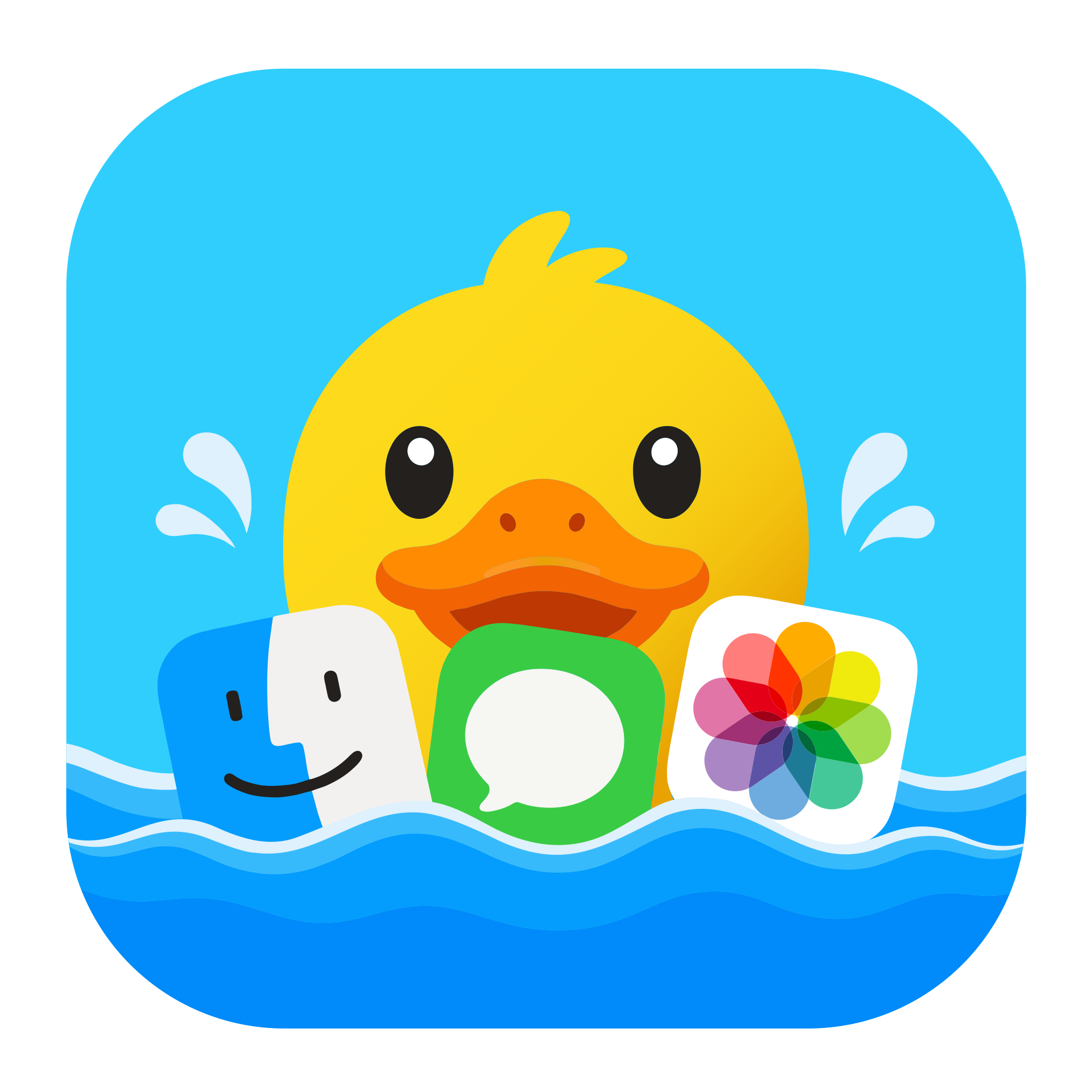
A Duck.

Turn your boring Dock into a pool of water. Apps float on top, music and a pomodoro timer soak in it — and the moment you zone out, your desktop becomes an aquarium.

Nobody else has this

Tilt your laptop.
The water actually flows.

Pick up your MacBook and tilt it — the water rushes to the lower side, courtesy of the motion sensor hiding inside. Completely unnecessary. Utterly irresistible.

Apple Silicon laptops only; desktops have no sensor, so it switches itself off.
On your phone? Tap “Give it a shake” on the water and try it yourself.
Illustration — the real thing uses the real sensor
Not just a pretty face

It's pretty.
It's also a real Dock.

Everything the native Dock does, this one does too. The basics come first — the water is the reward. Done with the native Dock? Hide it in one click, bring it back anytime.

📌
Pin & drag to sortDrag past the divider to pin, drag back to unpin.
🔴
Running indicatorsSee what's open at a glance.
🔔
Unread badgesMail and Messages counts show up as usual.
📂
Drag files to openDrop a file on an icon to open it with that app.
🖱️
Right-click menuQuit, hide, new window — it's all there.
🫧
Click-through waterThe water never blocks your mouse; the desktop stays clickable.
📥
Downloads trayOne click, and recent downloads float up in a second row.
🖥️
Multi-display waterOne pool per screen, pins synced in real time.
🚀
App launcherDrag apps in to pin, or fish one out of the launcher.
🎚️
Tune everythingMagnification, waves, splashes — a dozen sliders to play with.
🗑️
TrashStill here, right next to the duck.
🫥
Hide the native DockTuck it away, bring it back in one click.
About your windows

macOS windows, finally behaving

Three little things macOS never got right, fixed. Every demo below is playable.

Window picker

One click,
just the window you want

Click an app in the native Dock and every window floods forward. Here, thumbnails spread out first — pick one, and only that one surfaces. As intuitive as the Windows taskbar.


Thumbnails preload on hover, so the picker opens instantly.
Windows on other displays get thumbnails too — where most similar tools give up.
No screen-recording permission? It falls back to a title list and keeps working.
Draft proposal
Okinawa trip
Shopping list
Draft proposal
Okinawa trip
Shopping list
Notes
Click the Notes icon
The ⌥Tab switcher

Cmd+Tab switches apps.
⌥Tab switches windows.

Hold ⌥ and press Tab to list every window on this desktop: Tab cycles forward, ⌥` goes back, release to switch. Feels exactly like Cmd+Tab — it just works on windows.

The system's Cmd+Tab is untouched; the two coexist.
You can also just click with the mouse.
Sorting downloads
Booking flights
Meeting notes
Last week's photos
tab
Windows step aside

No window, however big,
sits on this water

A maximized window burying the dock is every Dock replacement's most awkward moment. Better Duck watches for maximized windows and trims them above the waterline — something even the veterans never bothered with.

Three modes. The default, “Slight overlap,” lets floating icons cover the window's edge — it looks the most natural.
Full-screen apps are left alone; fixed-size windows get a pass.
Try the three modes above
Music

Music controls,
hiding in the icon

Hover over Music or Spotify and the artwork, track, controls, and favorite button float out of the water — no need to stop what you're doing. While a song plays, the icon becomes the album art.

Works with Apple Music and Spotify.
It can even set the album art as your wallpaper, following you across desktops; it restores when the music stops.
This demo is playable: hover the icon, hit play.
Music
Hover the Music icon
Focus

A pomodoro timer,
soaking in the water

Focus for 25, rest for 5, long break every four rounds — the classic pomodoro method, built right into the Dock. When time's up, the duck jumps up to call you, notification included.

Manual by default: each round ends and waits for you. No nagging.
This demo runs fast — press start and watch a full round in seconds.
🍅
25:00
Focus
Aquarium mode

Zone out, and your desktop
becomes an aquarium

Idle for a few minutes and the water rises over your screen: the desktop shimmers behind it, icons drift free, the duck swims by, bubbles climb. Move the mouse and the water recedes — everything back in place.

Watching a movie or presenting? It politely stays away.
Always yields to the lock screen, screensaver, and sleep; off by default on battery.
No screen-recording permission? You get a stylized deep-water scene instead — still gorgeous.
Desk companion

More than one friend
on the water

They're alive: they breathe, blink, bob with the waves, and answer when you poke them. Besides the classic yellow duck, there's a girl lounging in a duck floatie.

Two companions to choose from: the duck, or the floatie girl.
Play some music and she puts on her cat-ear headphones — like right now.
One day, a poke will summon your AI assistant.
Floatie girl
Well behaved

Plays hard, sips power

Anything that lives on your desk all day had better not be annoying.

<5%

Idle CPU on dual 4K displays

GPU-composited — the water never stops, your Mac barely notices.

0

Interruptions to movies or slides

Video or presentation detected? The aquarium behaves itself.

🔋

Battery first

Aquarium off by default on battery; rendering pauses under full-screen apps.

🔓

Works without permissions

Permissions are a bonus, not a gate — anything missing degrades gracefully.

Ready to turn your desktop into water?

The duck is tidying up the last few things. Coming soon.

macOS 14 or later · Direct download